Invoicing — user documentation
This documentation describes the “Invoicing” section: bills and invoices, payments (incoming/outgoing), debt control and payment calendar, taxes, printing and reporting.
Who this section is for
The “Invoicing” section is typically used by:
- Sales manager / account manager — creates invoices, controls payments, works with accounts receivable by partners and contracts.
- Accountant / finance specialist — registers payments, matches payments with documents, controls debt closure, builds reports.
- Logistics / warehouse (if the warehouse contour is enabled) — creates and processes shipments from invoices.
If some documents or menu items are missing in your configuration, that is normal: the available functionality depends on enabled modules and settings.
Contents
Sections:
- Bills
- Mobile bills
- Invoices
- Shipments from invoice (if Inventory is used)
- Refunds and corrections
- Payments
- Debt and payment calendar
- Taxes
- Cost distribution
- Reports and printing
- Settings and directories
Quick start
Scenario: create an invoice and register an incoming payment
- Open “Invoicing” → “Operations” → “Invoices”.
- Create an invoice:
- Move the invoice to status "To pay" (action "Mark as Todo" in the invoice card; required by the workflow rules).
- After the payment is received, register an incoming payment and match it with the invoice.
- Control debt in reports and in the payment calendar.
Scenario: create a bill and register a supplier payment
- Open “Invoicing” → “Operations” → “Bills”.
- Create a bill and fill lines.
- Move the bill to status “To pay” (if required).
- Register an outgoing payment and match it with the bill.
End-to-end process “from amount due to debt closure”
Below are typical document chains. In a particular configuration, some steps may be disabled or replaced.
Sales (customer)
- Invoice — records the sale in accounting (revenue/taxes/customer debt).
- Shipment (optional) — an inventory document that can be created from an invoice.
- Incoming payment — records money receipt and reduces debt (after matching with documents).
Purchase (supplier)
- Bill — records the purchase in accounting (amounts/taxes/company payable to the supplier).
- Outgoing payment — records payment to the supplier and reduces debt (after matching with documents).
Practical guideline:
- if debt accounting is maintained by invoices, match incoming payments with invoices;
- if debt accounting is maintained by bills, match outgoing payments with bills;
- if the payment calendar is used, verify payment terms in documents and in settings.
Navigation
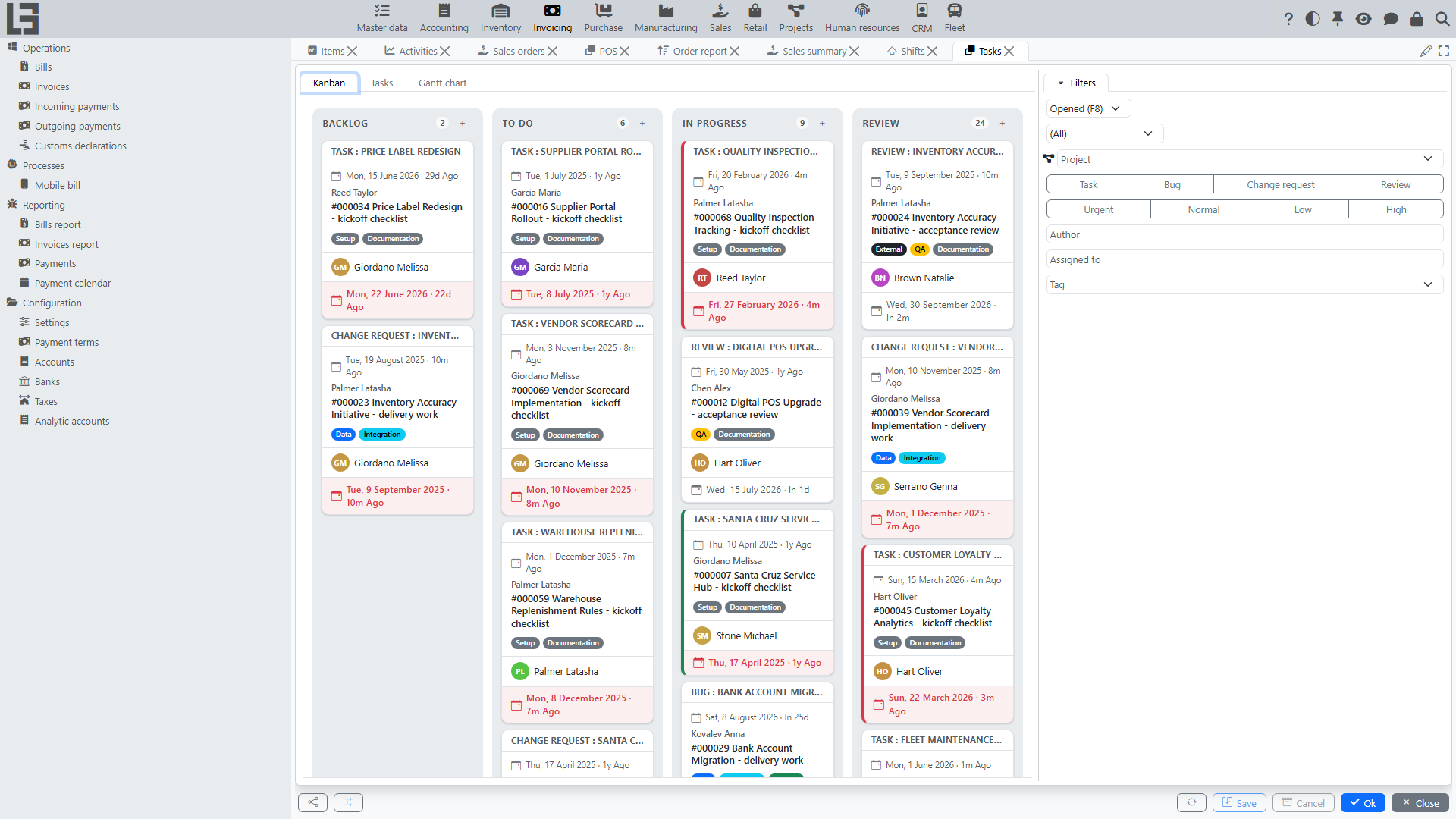
The "Invoicing" section contains the groups:
- Operations — Bills, Invoices, Incoming payments, Outgoing payments, and Customs declarations.
- Processes — Mobile bill.
- Reporting — Payment calendar, Payments, Bills report, Invoices report.
- Configuration — the Settings form, Taxes, Payment terms, Banks, Accounts (bank + cash), Analytic accounts.
Terms
Bill
A document that records receiving goods/services from a supplier and the amount due to the supplier.
Invoice
A document that records the sale in accounting (revenue, taxes, debt).
Incoming payment
Receipt of funds (payment from a customer/partner).
Outgoing payment
Withdrawal of funds (payment to a supplier, refund, other payouts).
Debt
The outstanding balance with a partner or contract — the signed sum of its active documents and payments. For a single document, the related figure is its remaining amount (Left) = amount minus matched payments.
Correction
A separate document that corrects or reverses a previously-confirmed bill or invoice. Bill corrections support both a replacement mode and a reversal mode; invoice corrections support replacement only.
Credit note / Refund
Documents used to record returns:
- a credit note is a bill of a special type (the "Return" flag is set on the bill type) and reverses a sales invoice from the supplier's side;
- a refund is an invoice of a special type (the "Return" flag is set on the invoice type) and reverses a purchase bill from the customer's side.
Statuses and editing (general principle)
Many documents in "Invoicing" follow a typical lifecycle:
- Draft — the document can be freely edited;
- To pay — the document is confirmed for further actions (printing, creating related documents, payments matching);
- Paid — the document is fully paid (in the Bill/Invoice card the action that drives this transition is "Mark as Paid"); on payments themselves the equivalent terminal status is Done;
- Canceled — the document is excluded from accounting/processes.
Exact behavior depends on configuration. As a rule, the "higher" the status, the more restrictions there are on changing fields and lines.
Integrations and dependent contours (user level)
- Bank/cash: payments are linked to bank accounts/cash registers; movement and debt reports are built from them.
- Inventory (if used): invoices can create shipments; some fields (location, delivery address) become required.
- Taxes: taxes can be set manually in lines or substituted automatically based on settings.
FAQ
Why doesn’t debt decrease after entering a payment?
Usually you need to:
- Make sure the payment is matched with documents (bills/invoices).
- Check document and payment statuses (they must not be Canceled).
- Check currency and amounts (partial payment, overpayment).
See: Payments, Incoming payments, Outgoing payments, Debt and payment calendar.
Why isn’t document printing available?
Printing most often depends on:
- document status (for example, printing is available only from “To pay” / “Ready”);
- the presence of a configured print template.